Setting up rewards
Rewards translate completed chores into motivation. This page explains each reward option and gives examples you can adapt.
Create a reward
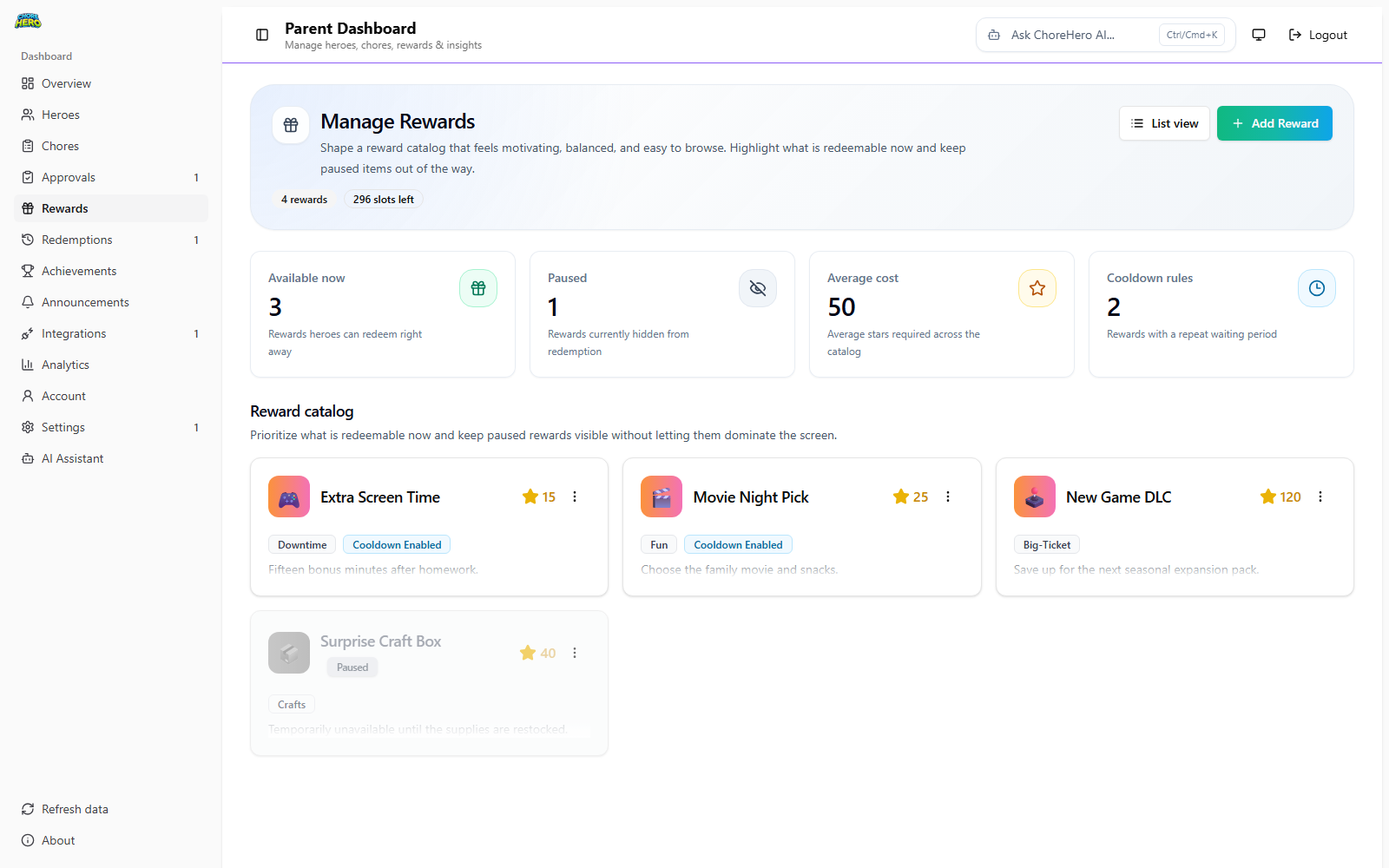
- Open parent dashboard.
- Go to Manage Rewards.
- Select Add Reward.
- Configure fields below.
- Save.
Reward options explained
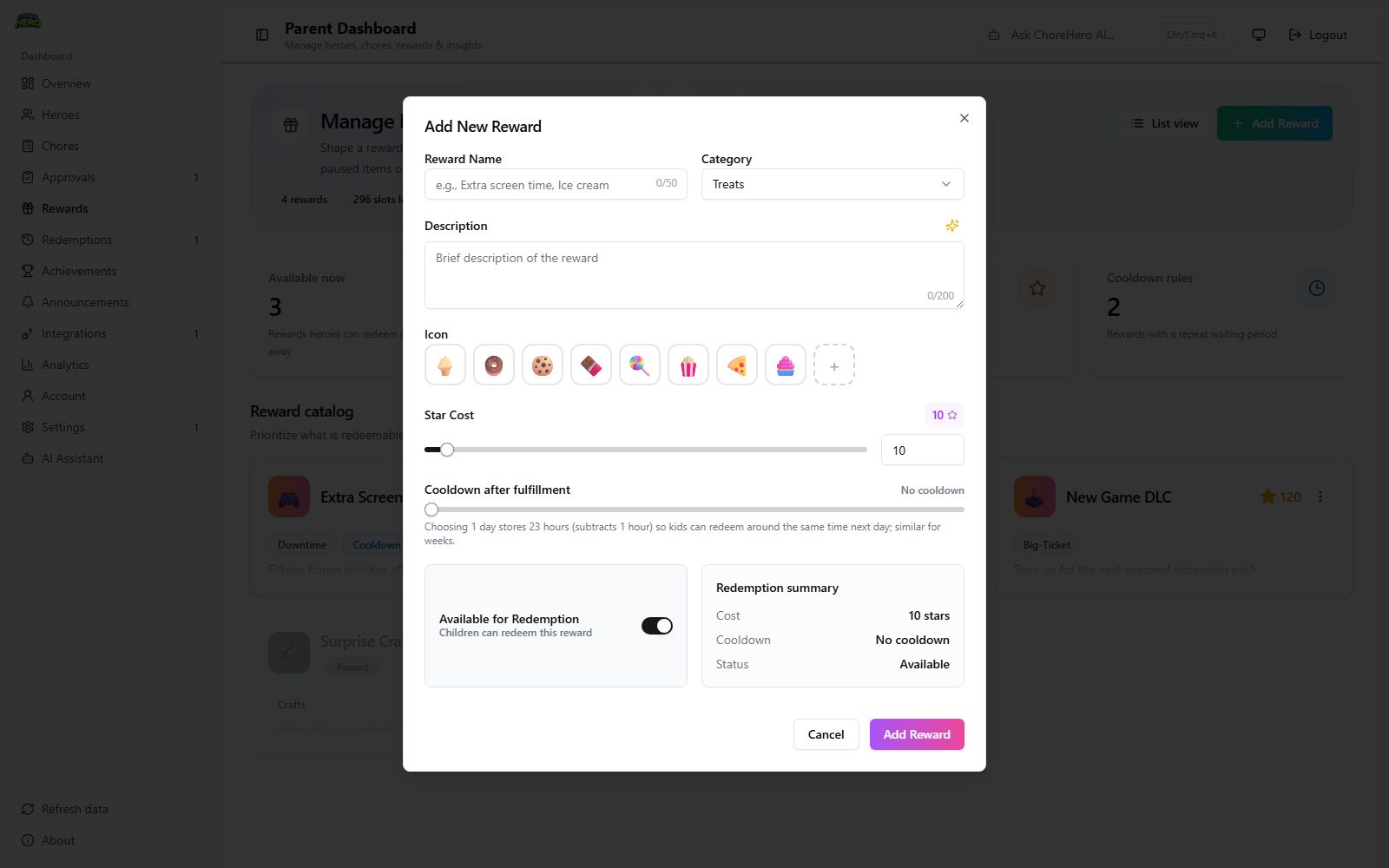
Reward Name
What it means:
- short title children see when deciding what to redeem
- required
- up to 50 characters
Examples:
- “30 minutes game time”
- “Choose Friday dessert”
- “Movie night pick”
Category
What it means:
- classifies rewards for easier scanning
- options: Screen Time, Treats, Activities, Privileges, Toys, Allowance, Sports
How to use it:
- use categories to keep balance across reward types
- avoid putting every reward in one category
Examples:
- Screen Time: extra tablet minutes
- Privileges: choose dinner music
- Activities: bike ride destination pick
Description
What it means:
- optional details and limits
- up to 200 characters
Examples:
- “Can be used only after homework is done”
- “Valid on weekends only”
- “One sibling at a time”
Icon
What it means:
- visual emoji marker for quick recognition
- preset or custom emoji
Examples:
- 🎮 for game-related rewards
- 🍦 for treats
- 🏀 for sports rewards
Star Cost
What it means:
- stars required to redeem
- slider covers common values quickly
- numeric input allows higher custom values up to 1000
How to price:
- low-cost rewards for frequent wins
- medium-cost rewards for weekly goals
- high-cost rewards for milestone moments
Examples:
- 10 stars: pick a family game
- 35 stars: one movie rental night
- 120 stars: larger monthly privilege
Cooldown after fulfillment
What it means:
- wait period before same reward can be redeemed again
- available steps include: no cooldown, 12 hours, 1-7 days, 10 days, 14 days, 21 days, 28 days, 30 days
How to use it:
- short cooldown for small rewards
- longer cooldown for high-impact rewards
Examples:
- no cooldown for low-impact social rewards like “choose music”
- 1 day cooldown for treat rewards
- 7 to 14 days cooldown for larger privileges
Available for Redemption
What it means:
- controls whether children can currently see and redeem the reward
- on: available
- off: hidden/paused
Examples:
- pause a seasonal reward after holidays
- hide a reward temporarily during school testing weeks
- re-enable a paused reward when routine normalizes
Practical reward design patterns
Pattern 1: Fast motivation + long goal
Use a mix like:
- 8 to 15 star quick rewards
- 30 to 60 star weekly rewards
- 100+ star milestone rewards
Pattern 2: Balance by category
Create at least one option in multiple categories so children can choose based on preference:
- one Treats reward
- one Activities reward
- one Privileges reward
Pattern 3: Use cooldowns to avoid burnout
- apply cooldown to highly requested rewards
- keep no-cooldown for harmless routine rewards
Plan-aware reward limits
The number of rewards you can create depends on plan limits.
- Internal fallback access supports up to 20 rewards.
- ChoreHero Family supports higher reward limits.
When the limit is reached, existing rewards still work and can be edited.