Contact and Support
ChoreHero support now follows a guided path:
- run quick self-checks first
- submit a support ticket from the parent app when needed
- track ticket updates inside the parent support hub
Open the support hub: Parent Dashboard support hub
Guided self-check before creating a ticket
Use this checklist before opening a ticket:
- confirm you are signed into the correct parent account and household
- refresh the page and retry the same action once
- verify whether this is mainly an account/login issue, a billing issue, or a chores/rewards workflow issue
- check your internet connection and retry from a stable network
- write down the exact error message and the time it happened
- capture at least one screenshot when the issue is visible on screen
If the issue is still unresolved, create a ticket in the support hub link above.
How to open a support ticket
- Open Parent Dashboard support hub.
- Select the category that best matches your issue.
- Add a short summary of what you were trying to do.
- Include the details from the checklist above (error text, time, screenshots).
- Submit the ticket and keep the support hub open to monitor updates.
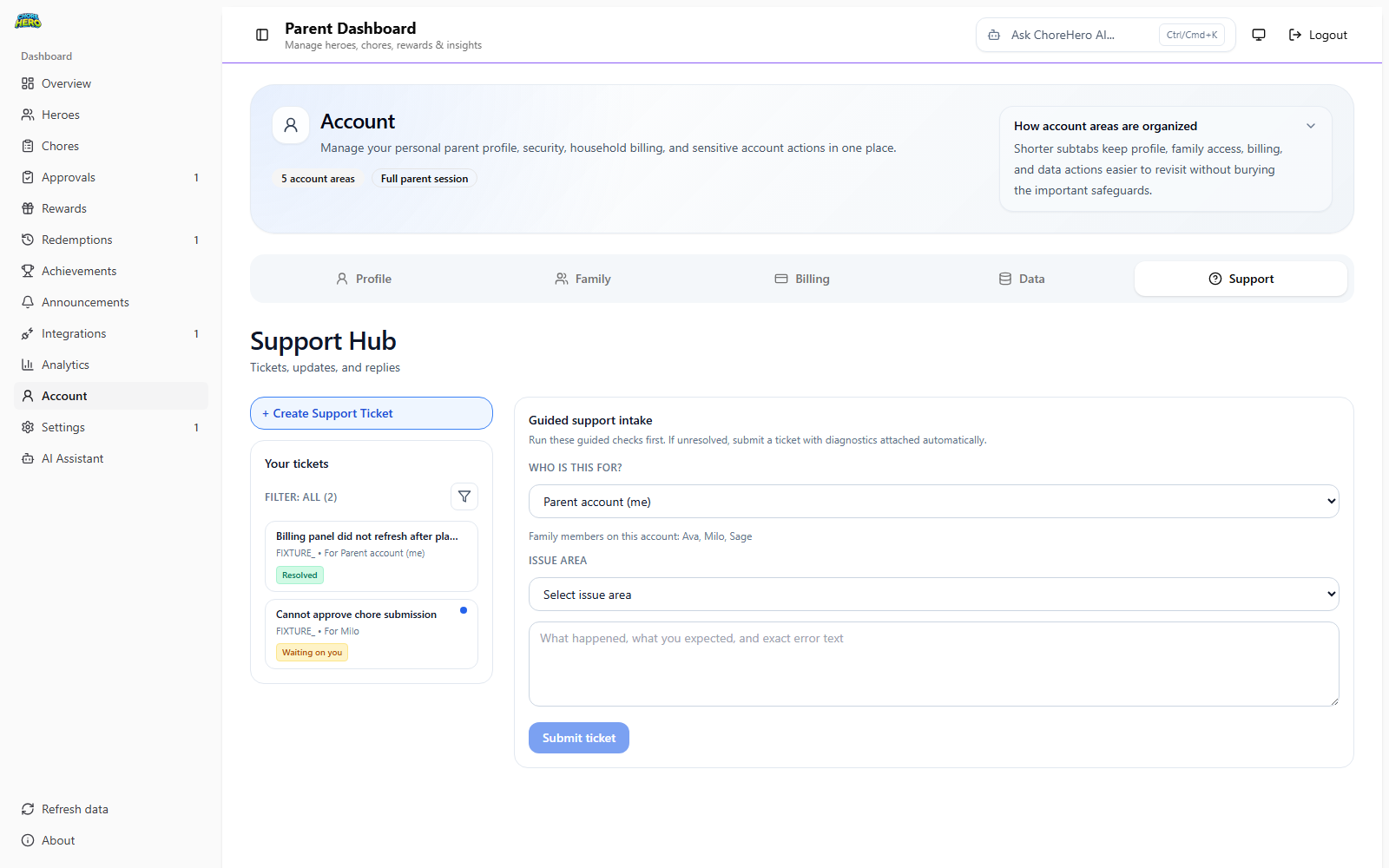
The screenshot above shows the in-app support intake panel used for creating a new ticket from the parent account.
Ticket checklist (recommended)
Include these details in every ticket so support can resolve it faster:
- whether this affects parent actions, child actions, or both
- the exact page or screen where the issue happens
- the step that fails (for example, login, billing update, approving a chore, or reward redemption)
- any recent changes before the issue started (plan change, onboarding update, settings change)
- device and browser/app context when relevant
- screenshot or copied error text
Current routing
Account or sign-in issues
- start at app.chorehero.cloud/login
- reproduce the issue from a fresh sign-in path
- then open Parent Dashboard support hub
Billing questions
- open the parent app
- go to Parent Dashboard > Account > Billing
- use the billing or customer-portal actions first
- if still blocked, open Parent Dashboard support hub
Privacy and legal questions
What to include when asking for help
Share:
- whether the issue affects a parent or child flow
- the household action you were trying to complete
- whether the issue started after a billing, onboarding, or settings change
- screenshots or exact error text when available
How status updates are delivered
- when support posts an update, parents see a dashboard notification in the app
- the Account nav badge shows pending support updates
- ticket threads are visible in Parent Dashboard > Account > Support
- support update emails include a direct link back to the same support hub
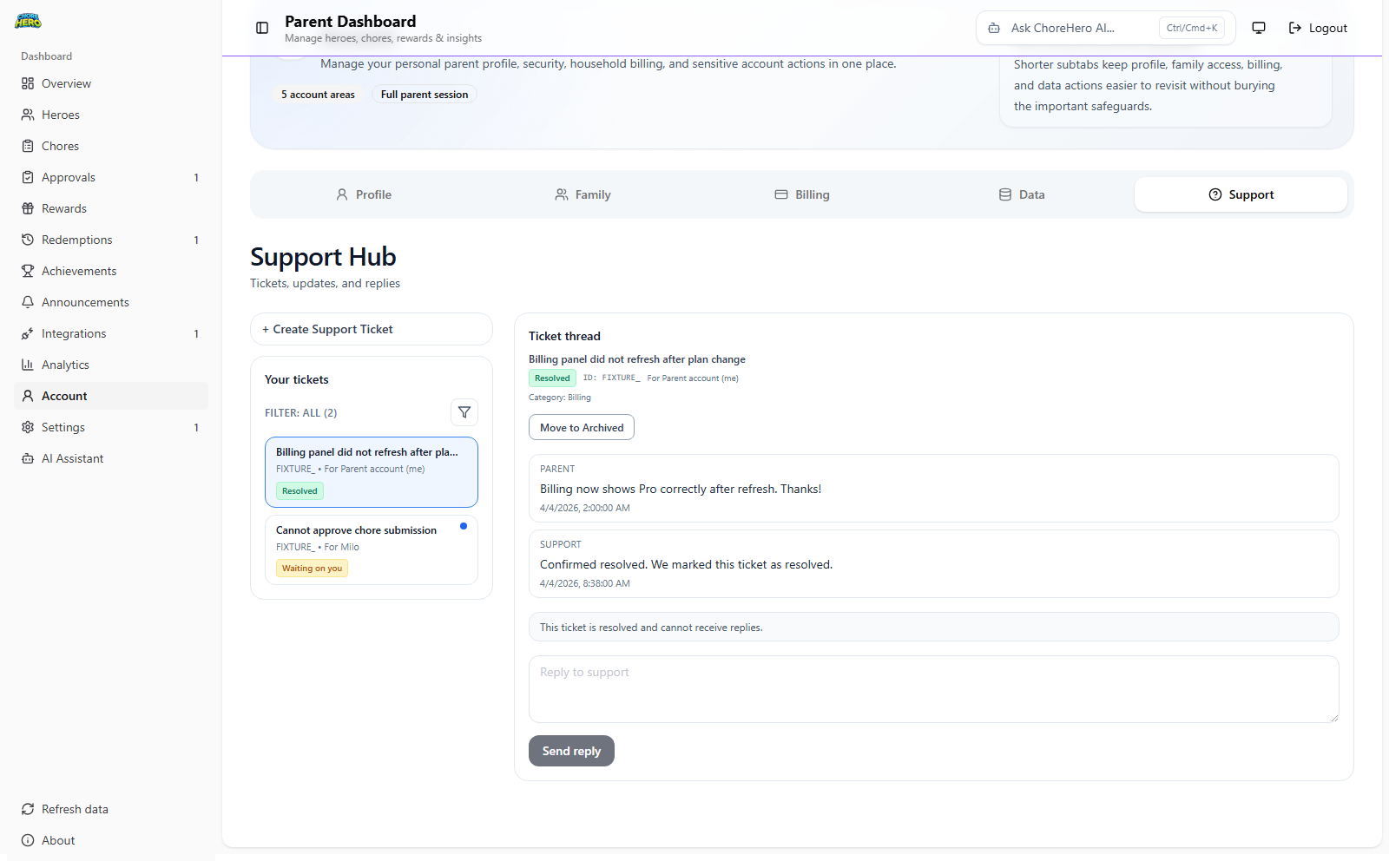
The screenshot above shows where ticket status and support updates appear inside the parent support hub.