In ChoreHero, each child profile is a hero. Parents create and manage heroes from the parent dashboard.
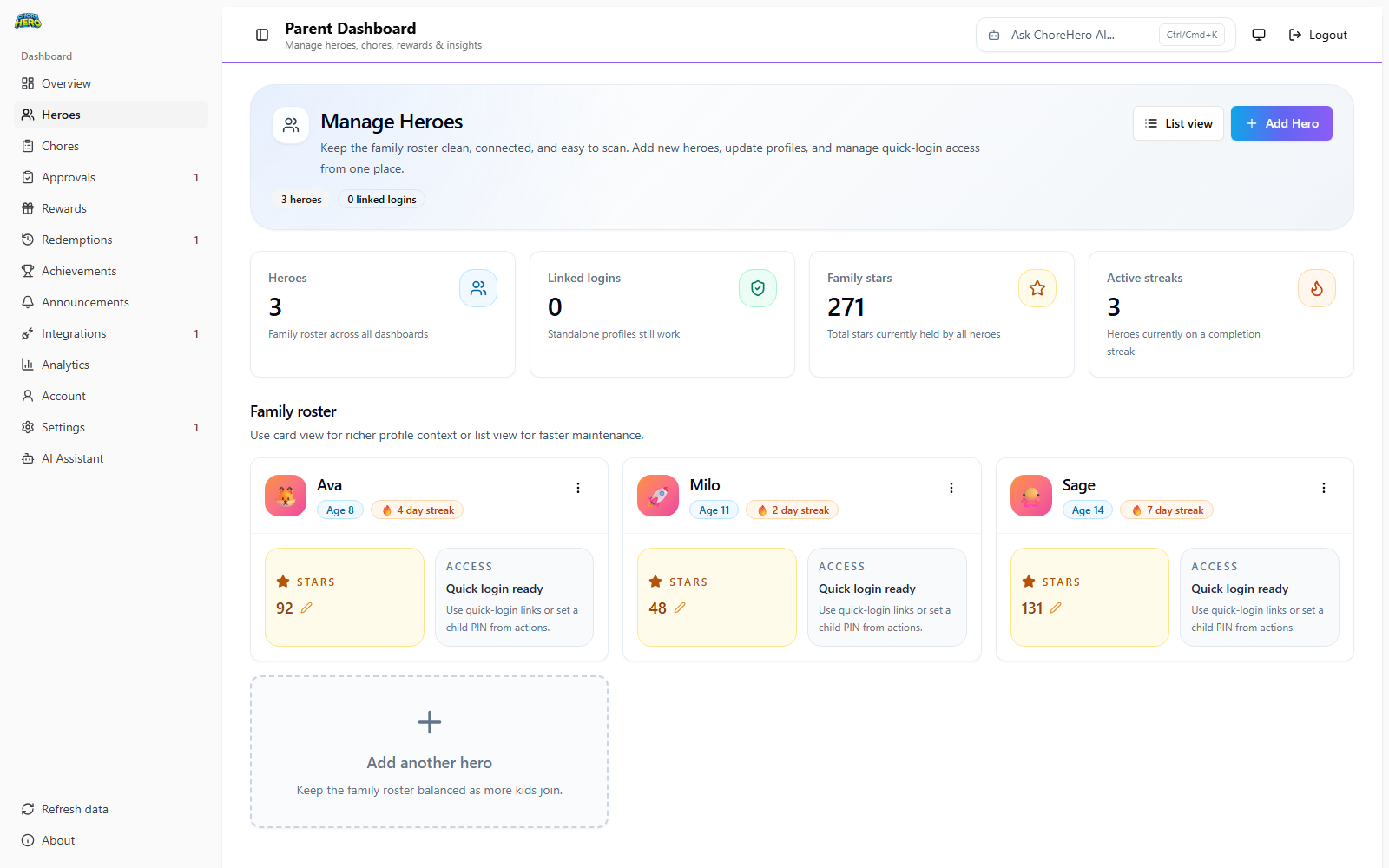
Create a new hero
- Open the parent dashboard.
- Go to Manage Heroes.
- Select Add Hero.
- Fill in the profile fields.
- Continue to PIN setup.
- Choose Set PIN or Generate PIN.
- Save.
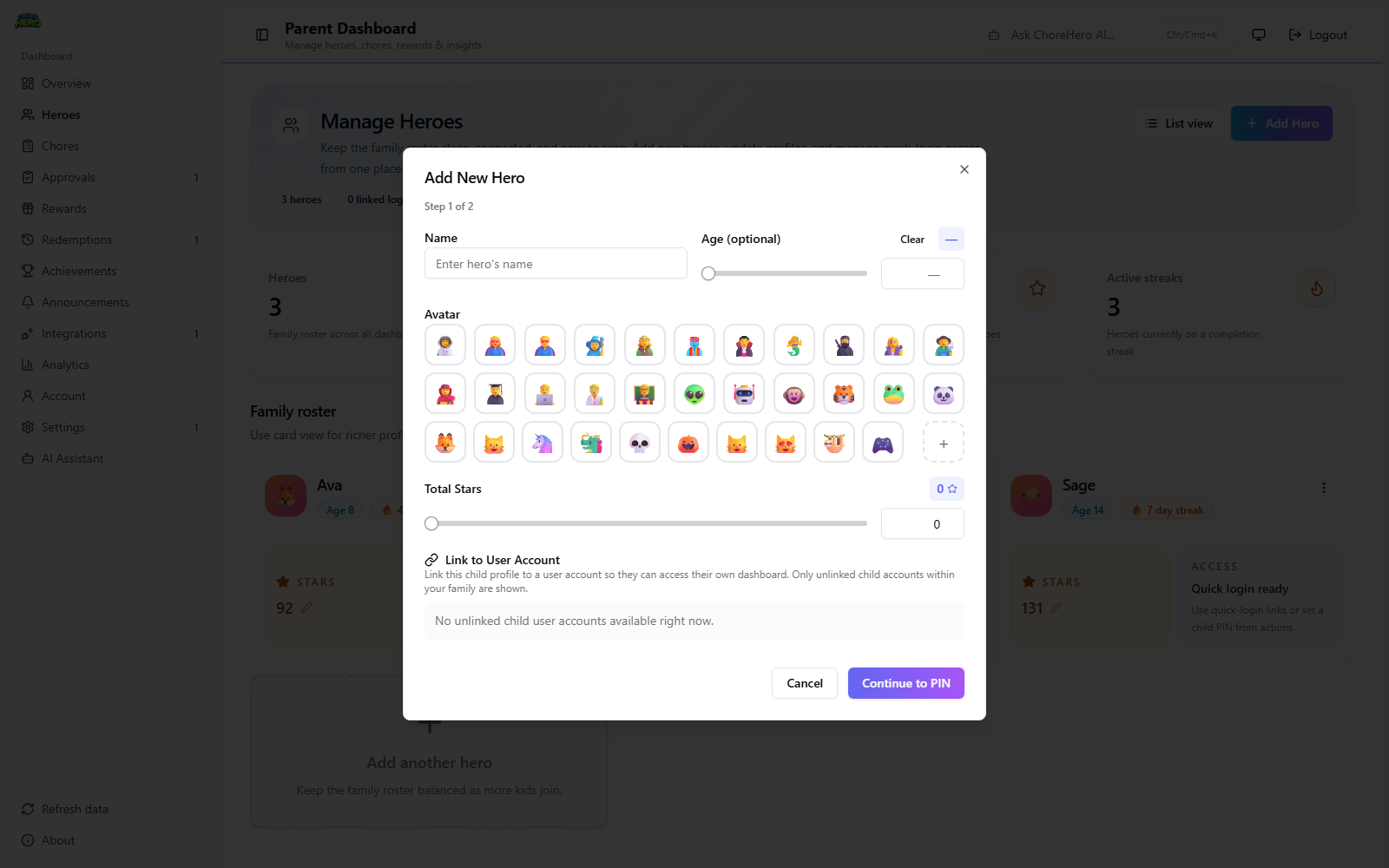
Hero options explained
Name
What it means:
- the display name shown across chores, rewards, achievements, and approvals
- required field
- up to 30 characters
How to choose it:
- use the name your household already uses out loud
- keep spelling consistent with school and family calendars so reminders are clear
Examples:
- “Noah” for a simple household display
- “Mia R” when siblings share a first name
- “Alex (Teen)” if you want quick age context in a larger family
Age (optional)
What it means:
- optional profile metadata
- allowed range is 1 to 99
How to use it:
- include age when you have mixed age groups and want fast context while assigning chores
- leave blank when age is not needed for your routine
Examples:
- set age 6 to remind yourself to keep chore difficulty lower
- set age 13 for teen-focused chores and higher star goals
- leave blank for a short-term test profile
Avatar
What it means:
- the emoji used as a visual profile marker throughout the app
- can use a preset emoji or a custom emoji
How to use it:
- assign visually distinct avatars to avoid wrong-person taps
- avoid using nearly identical emojis for siblings
Examples:
- 🦊 and 🐼 for two siblings with similar names
- ⚽ for a sports-focused child profile
- 🌟 for a temporary guest helper profile
Total Stars
What it means:
- the star balance currently stored on the hero profile
- allowed range is 0 to 500
How to use it:
- start at 0 for most households
- set a non-zero balance when migrating from a prior chart or notebook
Examples:
- 0 for brand-new onboarding
- 35 to carry over stars from a paper system
- 100 for a one-time seasonal challenge kickoff
Link to User Account
What it means:
- connects the hero profile to a child user account login
- only unlinked child accounts in your family are available
How to use it:
- link when the child will sign in directly
- keep unlinked when the parent manages all actions on shared devices
Examples:
- link a child account for independent check-ins after school
- keep unlinked for a younger child using only parent-assisted flows
- unlink and relink when a profile was connected to the wrong account
PIN and login security options
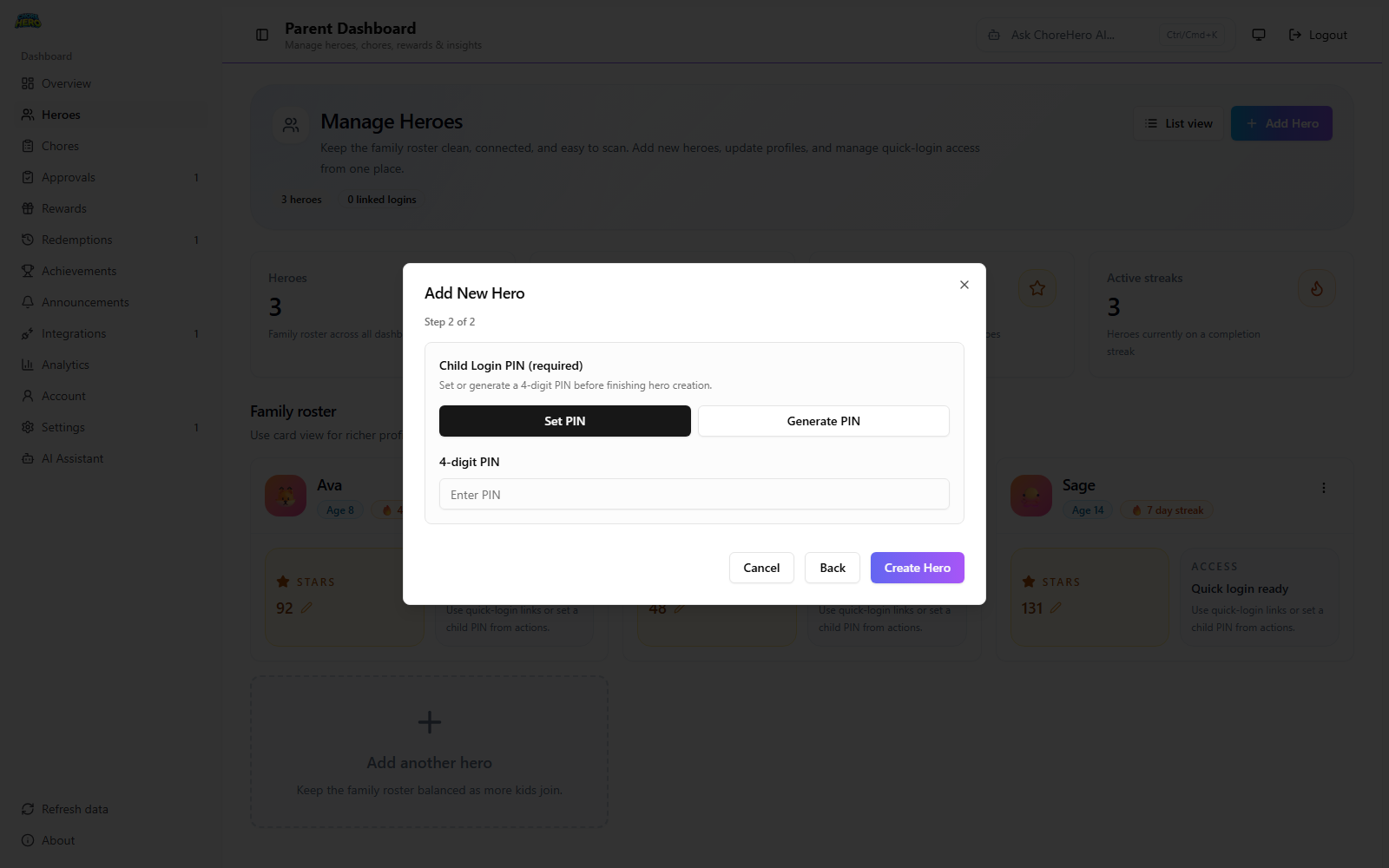
Set PIN
What it means:
- parent chooses a specific 4-digit PIN
When to use it:
- when your child can remember a known number pattern
- when you want siblings to have intentionally different PINs
Examples:
- set a memorable 4-digit code for a younger child
- reset PIN after a forgotten code
Generate PIN
What it means:
- app generates a random 4-digit PIN
- shown once after creation or regeneration
When to use it:
- when you need a quick secure reset
- when the previous PIN was shared too widely
Examples:
- generate a fresh PIN after a sleepover
- generate a temporary PIN before rotating it later
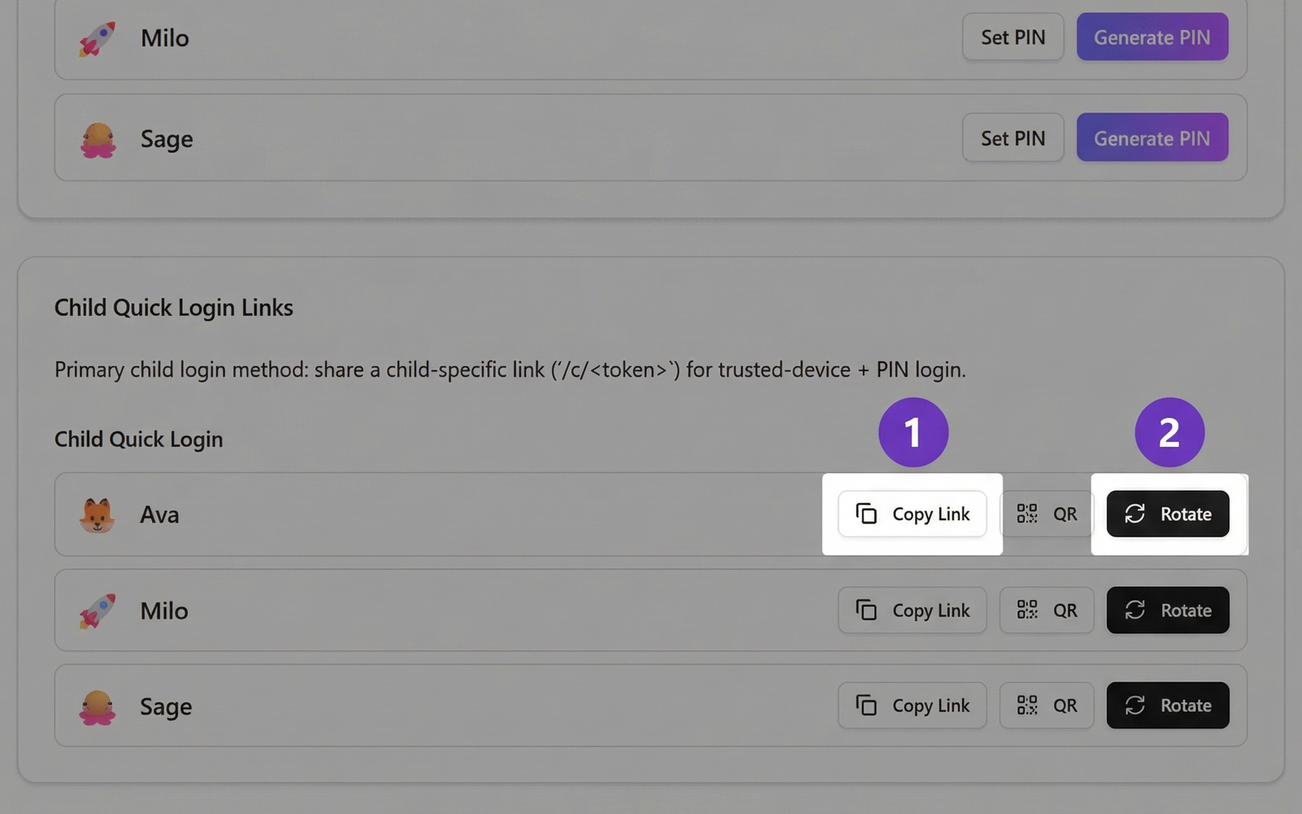
Child login link actions
What they mean:
- Copy link creates/copies a child login URL
- Rotate link invalidates the old URL and creates a new one
When to use them:
- copy for trusted-device setup
- rotate when a link might have been shared beyond your household
Examples:
- copy a login link to set up a school-night tablet
- rotate links after device loss
- rotate and resend when a child cannot access with an older bookmark
How children can log in
Each hero can sign in through one of two practical paths.
Quick Hero Login link
What it is:
- a child-specific quick login link the parent copies for that hero
- the primary child login method when quick login is available on your plan
- designed for faster repeat access on trusted devices
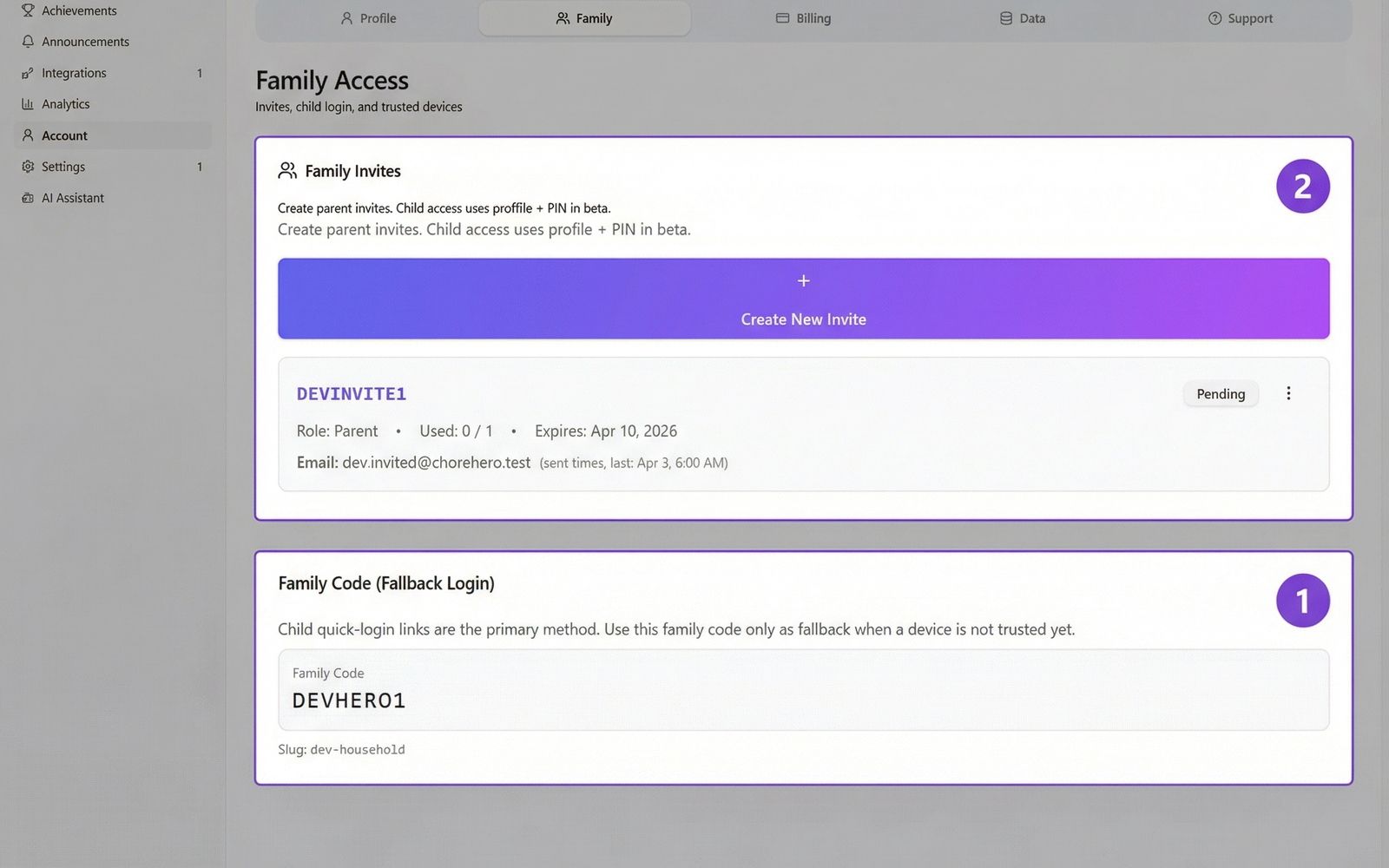


How the child uses it:
- Open the quick login link for that hero.
- If the device is already trusted, enter the hero PIN.
- If the device is new or not trusted, ask a parent to approve it.
- After approval, enter the hero PIN and continue to the child dashboard.
What the child should expect:
- a Quick Hero Login screen when the link opens correctly
- a hero PIN prompt on trusted devices
- a parent approval step on untrusted devices
Best for:
- a home tablet used often by the same child
- a shared family device where you want fewer login steps
- households that want quick daily access without typing the family code each time
Family code fallback login
What it is:
- the standard backup child login method
- child signs in with family code first, then chooses their hero, then enters the hero PIN
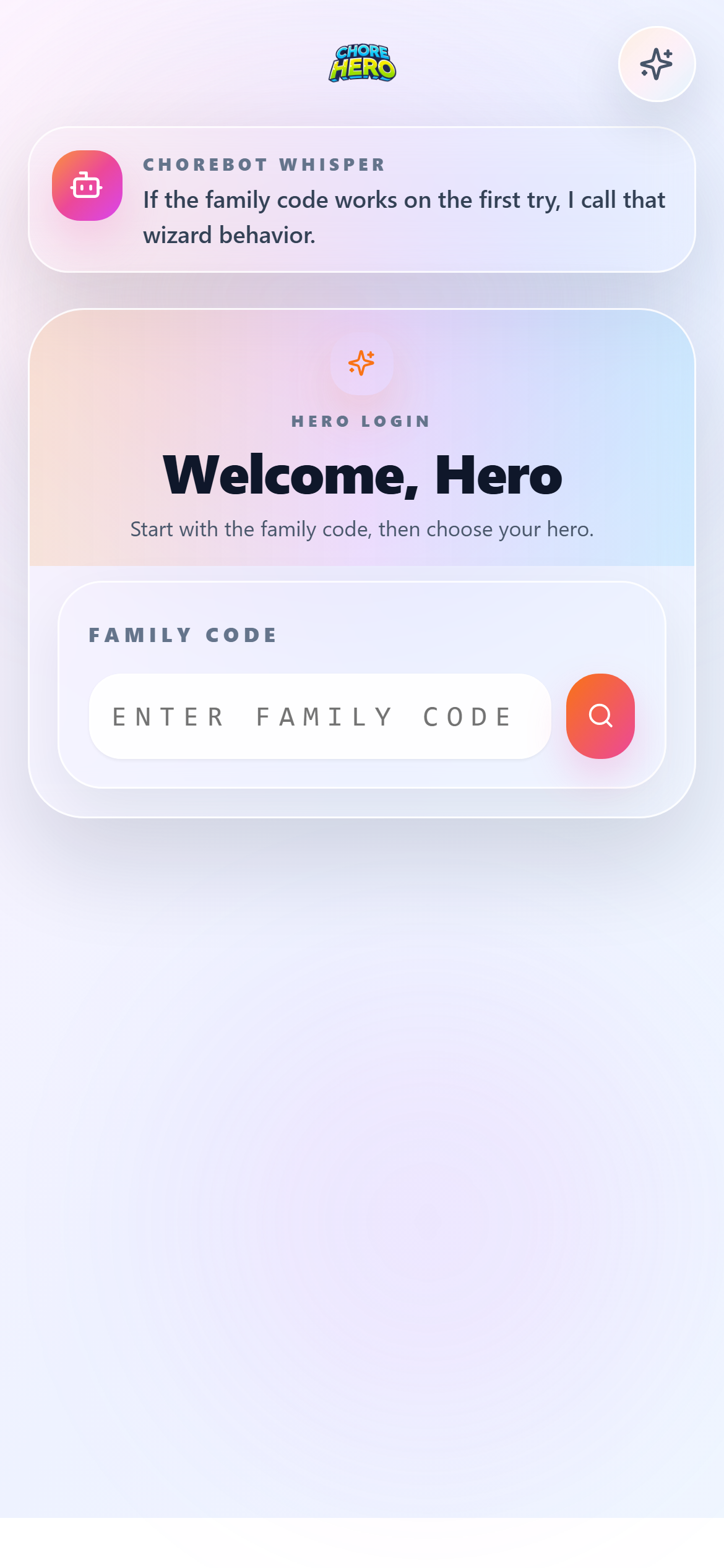

How the child uses it:
- Open the standard child login screen.
- Enter the family code.
- Choose the correct hero.
- Enter the 4-digit hero PIN.
Best for:
- first-time device setup
- households using fallback access for troubleshooting
- cases where a quick login link was rotated or is temporarily unavailable
How parents use hero login options
Parents control how each hero gets into the app. That usually means deciding how much convenience or control each child needs.
Set up login during hero creation
During hero creation, the parent typically:
- Creates the hero profile.
- Sets or generates the hero PIN.
- Decides whether to link the hero to a child user account.
- Saves the hero.
- Copies a quick login link later if the child will sign in directly on a device.
This is the baseline setup for reliable child access.
Choose linked or standalone access
If the hero is linked to a user account:
- the hero is connected to that specific child account identity
- this is a better fit for older children who sign in more independently
If the hero is not linked:
- the hero can still use parent-managed login methods such as PIN-based access
- this is often the simpler option for younger children or shared-device use
Manage the hero PIN
Use Set PIN when:
- the child already has a memorable 4-digit code
- you want predictable PINs for daily use
- you want siblings to have intentionally different PINs
Use Generate PIN when:
- the old PIN may have been shared too widely
- you want a fast random reset
- you are setting up access quickly and can record the new PIN right away
Important:
- generated PINs should be recorded immediately because they are shown once after generation
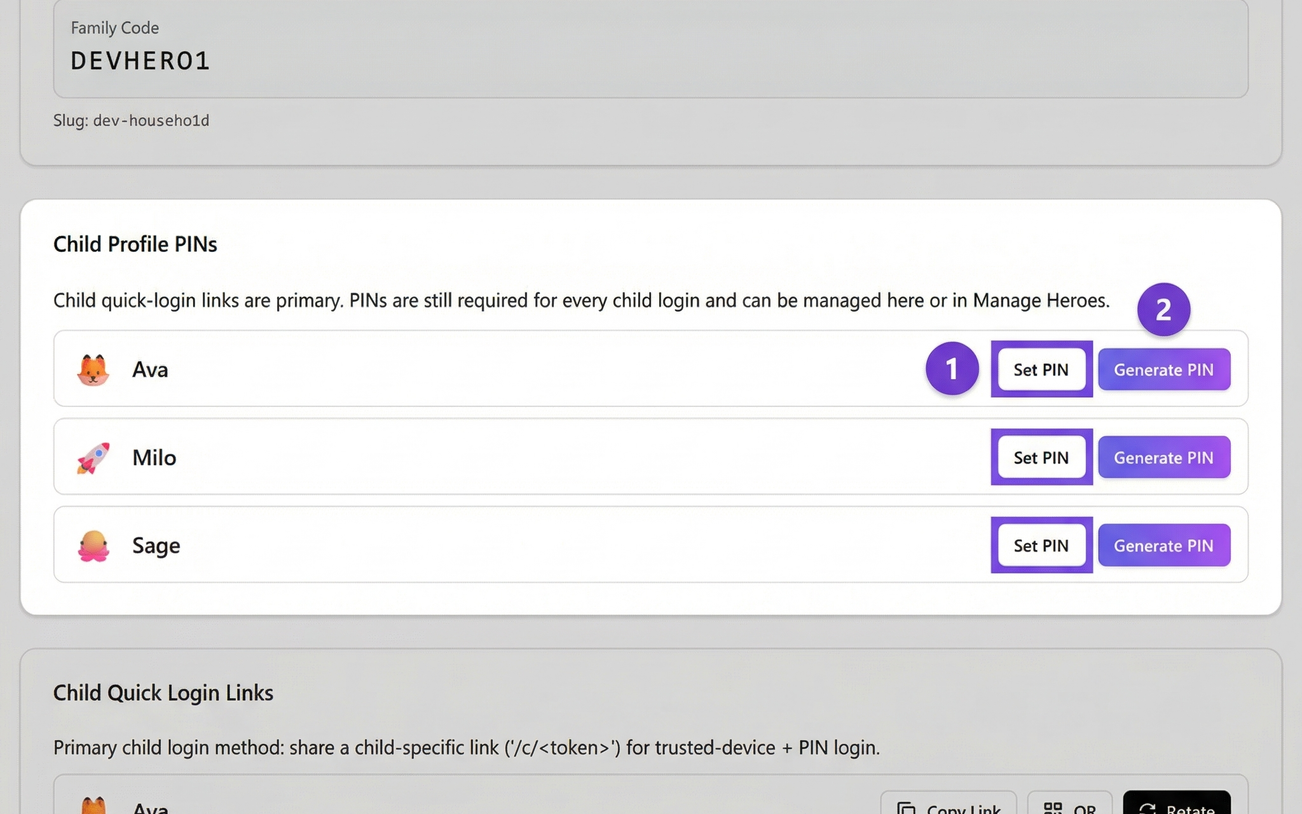
Copy a quick login link
What it does:
- creates or copies the hero’s current quick login link
- lets the parent paste it into the child’s normal device or save it as a shortcut
Best practice:
- copy the link directly onto the device the child actually uses
- test it once before depending on it for regular routines
Examples:
- save it as a home screen shortcut on a family iPad
- paste it into the child’s Chromebook bookmarks
- keep it on a shared kitchen tablet for after-school check-ins
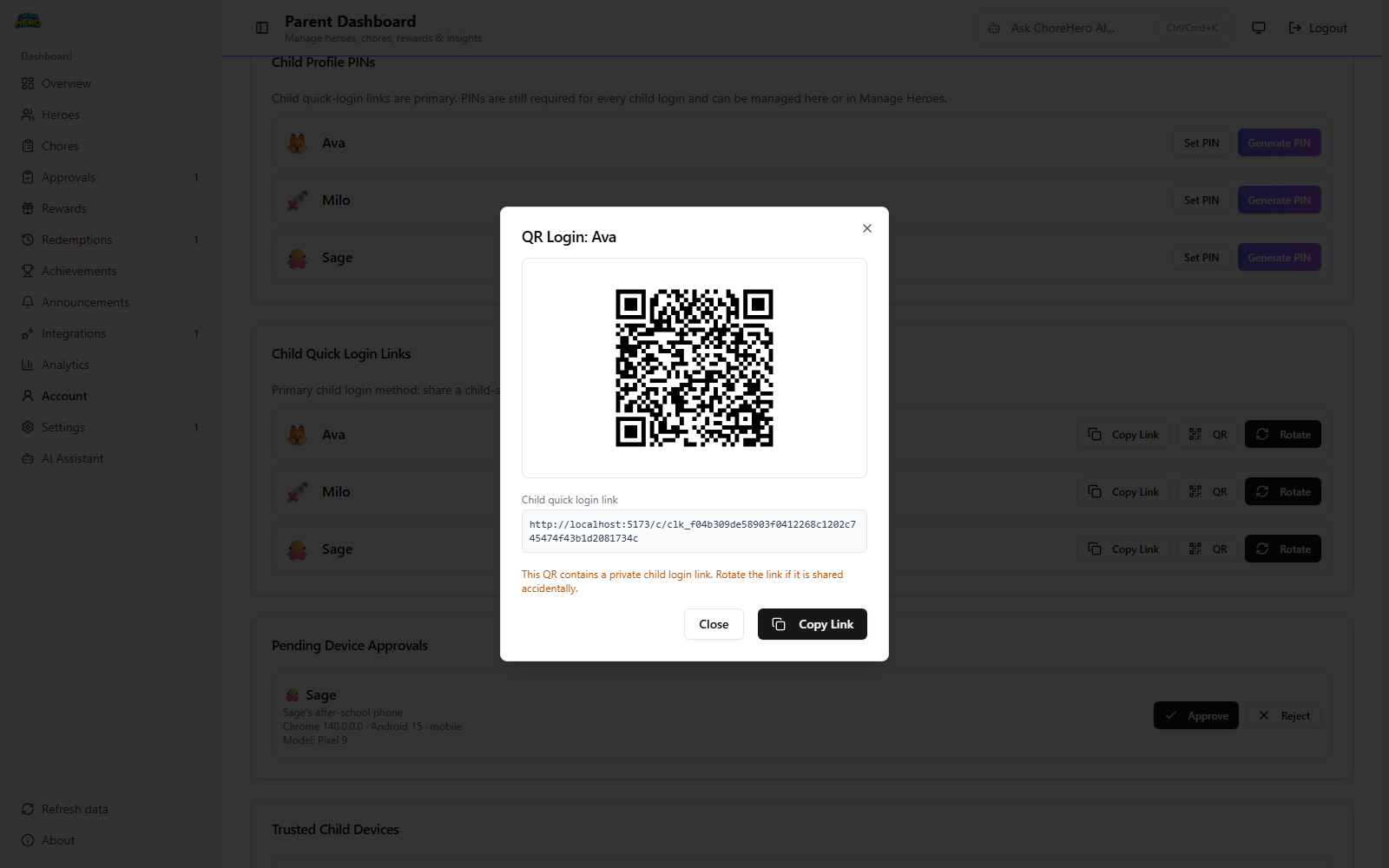
Approve a new device
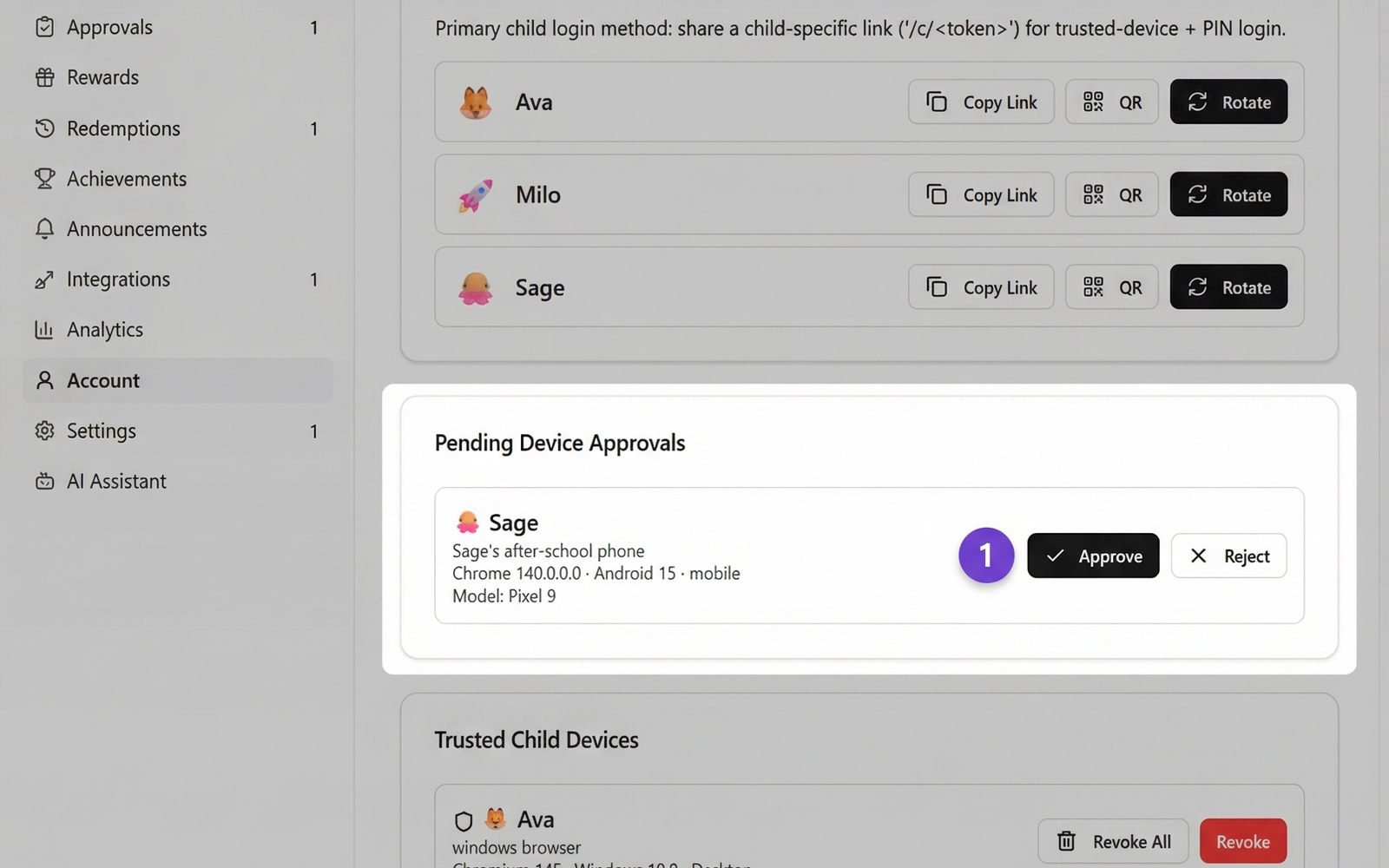
If a child opens a quick login link on a device that is not trusted yet:
- the app asks for parent approval first
- the parent approves that device with the parent PIN
- the child then completes login with the hero PIN
This gives the household a way to use quick login without letting every new device in automatically.
Examples:
- approve a replacement tablet after the old one is lost
- approve a second device used only on weekends
- delay approval until you confirm the device belongs in your household
Rotate a quick login link
What it does:
- invalidates the old hero quick login link
- creates a new one for future access
Use it when:
- a device was lost or handed down
- a link was shared in the wrong place
- a child keeps using an old bookmark that should no longer work
Examples:
- rotate after a tablet is left at school
- rotate after sending a link to the wrong family member
- rotate and resend when a saved shortcut stops working
Recommended login setup by use case
Younger child on a shared device
Suggested setup:
- standalone hero profile
- parent-chosen PIN
- quick login link copied to one shared device
- parent approval required for any new device
Older child with more independent access
Suggested setup:
- linked child account
- private hero PIN
- quick login link copied to the child’s main device
- link rotation when access needs a reset
Backup access for any household
Suggested setup:
- keep the family code available as fallback login
- keep the current hero PIN recorded somewhere safe
- use quick login for convenience, not as the only recovery option
If a hero cannot log in
Check these in order:
- confirm the child picked the correct hero
- confirm the child is entering the current 4-digit hero PIN
- if using quick login, confirm the link was not rotated
- if using a new device, confirm a parent approved it
- reset or generate a new hero PIN if needed and try again
For broader account and sign-in issues, see Account, login, and onboarding.
Plan-aware hero limits
Your plan controls how many heroes can be created.
- Internal fallback access supports up to 2 heroes.
- ChoreHero Family supports larger households with higher limits.
If you reach the limit, existing heroes continue to work and you can still edit them.
Suggested default setup
For most households starting fresh:
- create each hero with clear names and distinct avatars
- start stars at 0
- set PINs immediately
- link user accounts only for children who will sign in directly