
Creating chores
Chore creation in ChoreHero uses a 3-step wizard. This page explains what every major option means and when to use it.
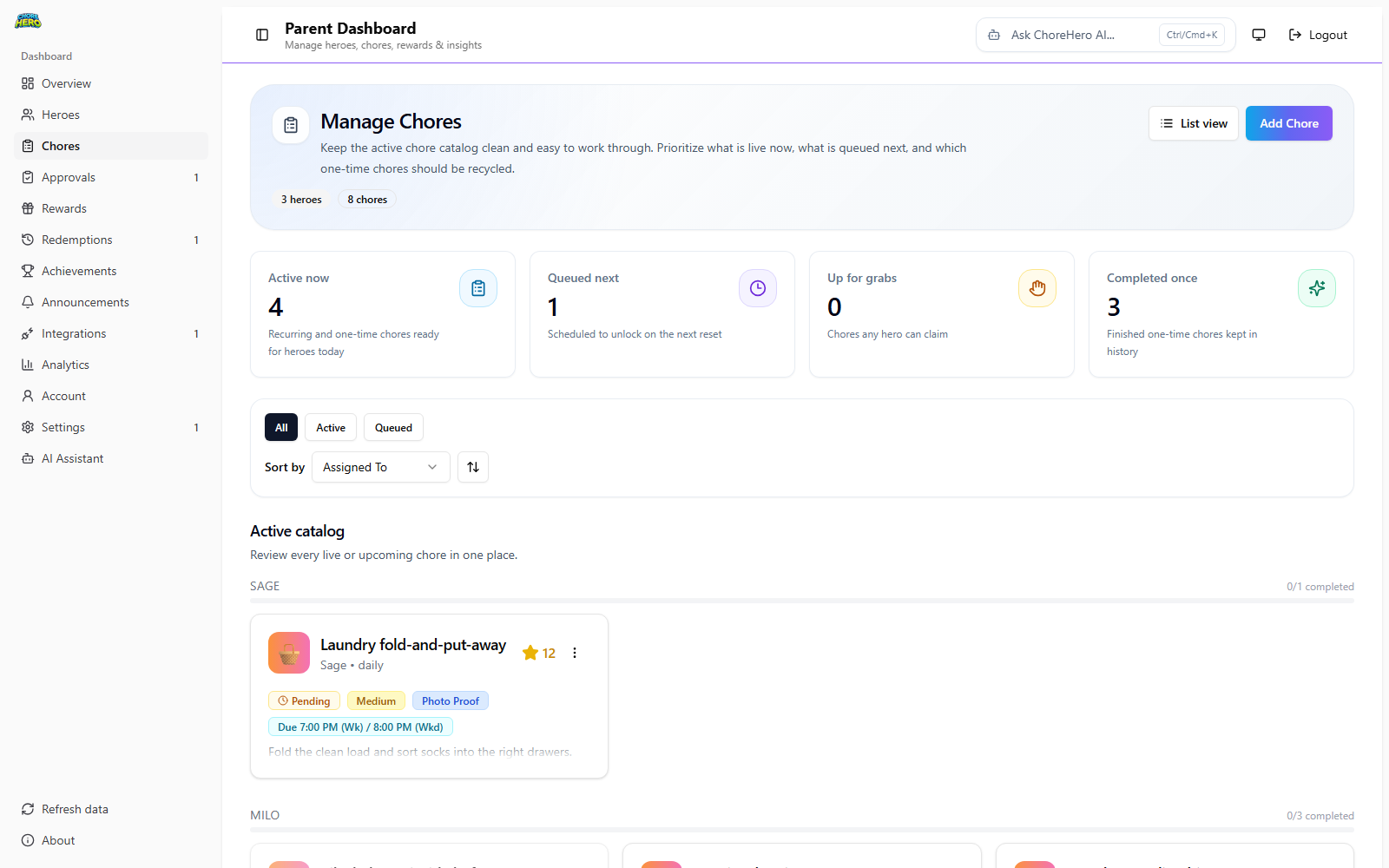
Step 1: Basics
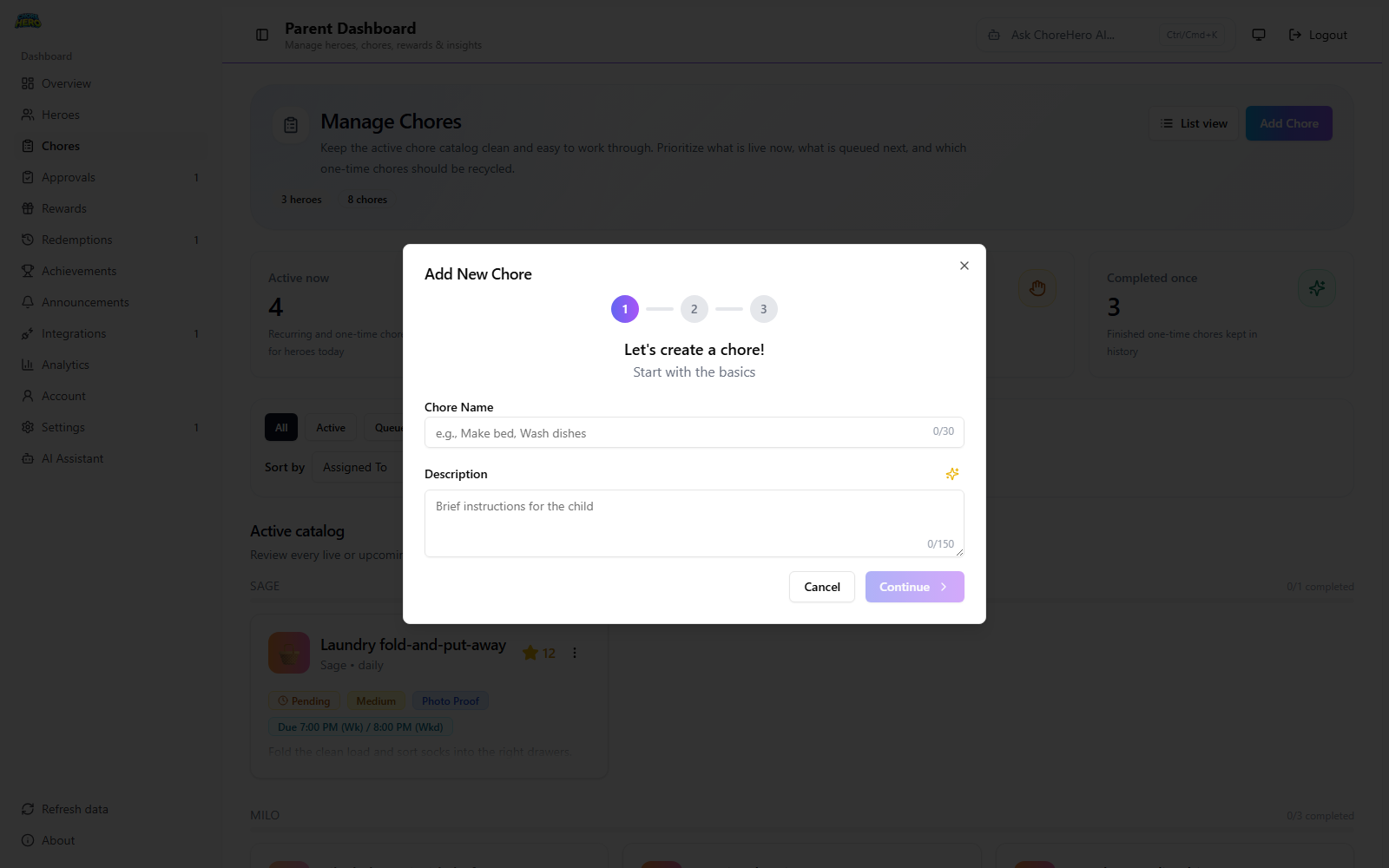
Chore Name
What it means:
- the short title shown in child and parent lists
- required field
- up to 30 characters
How to write it:
- keep it short enough to scan quickly in lists
- name the visible outcome, not the full instruction set
Examples:
- “Make bed”
- “Unload dishwasher”
- “Take out recycling”
Description
What it means:
- optional instructions for how the chore should be done
- up to 150 characters
How to use it:
- add the details a child may forget without a reminder
- skip it when the chore name is already clear on its own
Examples:
- “Put clean clothes in correct drawers”
- “Use pet-safe cleaner and refill bowl”
- “Take photo after done if needed”
Step 2: Visual and scoring options
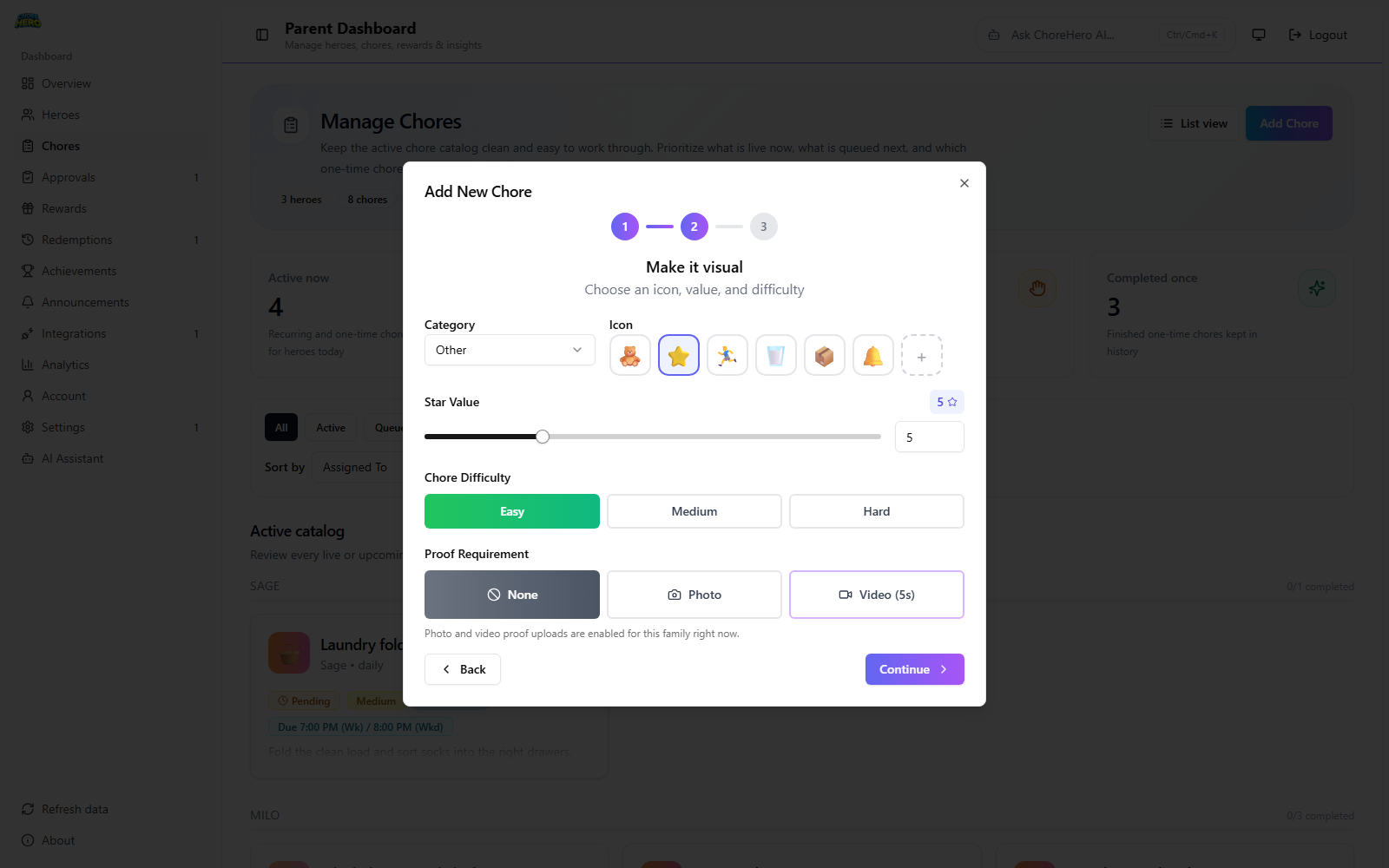
Category
What it means:
- groups chores for organization and reporting
- options include: Cleaning, Organizing, Pets, Yard, Kitchen, Laundry, Homework, Personal Care, Other
How to use it:
- keep category naming consistent so trends are easier to understand
Examples:
- put “wipe counters” under Kitchen
- put “sort backpack” under Organizing
- put mixed custom tasks under Other
Icon
What it means:
- emoji marker shown with the chore
- can use preset or custom emoji
Examples:
- 🧽 for cleaning chores
- 📚 for homework chores
- 🐶 for pet care chores
Star Value
What it means:
- stars awarded when the chore is approved/completed
- allowed range is 0 to 20
How to choose it:
- assign higher stars for tasks that are harder, longer, or less frequent
Examples:
- 3 stars for “make bed”
- 8 stars for “clean bathroom sink and mirror”
- 15 stars for a large weekly yard task
Chore Difficulty
What it means:
- visual difficulty marker: Easy, Medium, Hard
- helps communicate expected effort to children
Examples:
- Easy for daily small routines
- Medium for multi-step chores
- Hard for long or high-focus tasks
Proof Requirement
What it means:
- whether a child must submit evidence
- options:
- None
- Photo (plan-dependent)
- Video (5s, plan-dependent)
Plan behavior:
- photo proof requires eligible paid-plan access
- video proof requires paid access that includes video proof entitlements
Examples:
- None for low-risk chores like making the bed
- Photo for tasks where visual completion matters (clean counters)
- Video for short demonstration chores (pet feeding process)
Step 3: Assignment and schedule
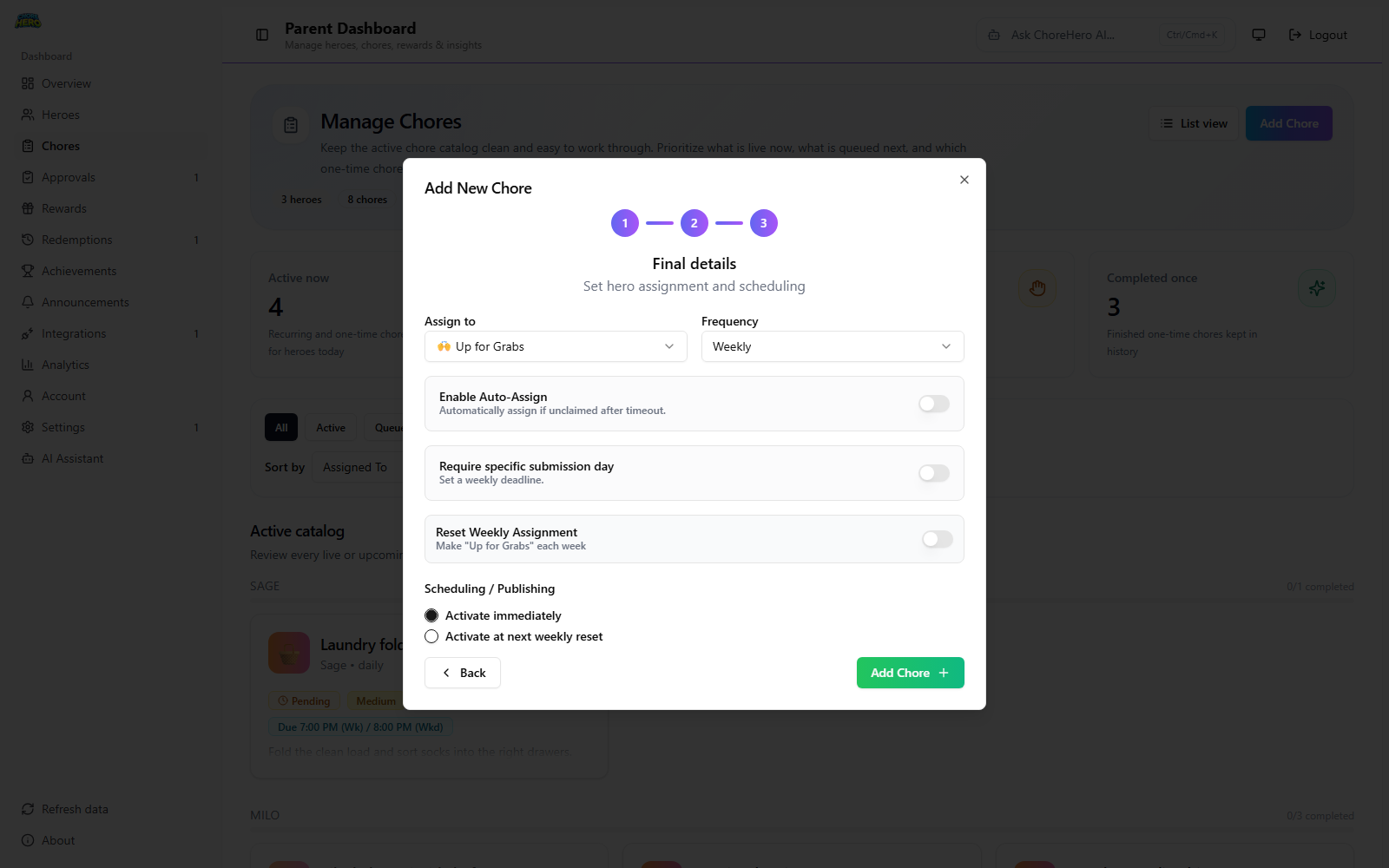
Assign to
What it means:
- chooses who can complete the chore
- options:
- a specific hero
- Up for Grabs
Examples:
- assign dishes to one hero for consistency
- use Up for Grabs for shared tasks like “empty trash”
- use Up for Grabs during busy weeks for flexibility
Up for Grabs: Enable Auto-Assign
What it means:
- if still unclaimed after a timeout, the chore auto-assigns
- timeout range is 1 to 72 hours
Examples:
- set 12 hours for daily chores to avoid end-of-day misses
- set 24 hours for shared chores in larger families
- set 48+ hours for low-urgency weekly chores
Frequency
What it means:
- recurrence rule
- options: Daily, Weekly, One-time
Examples:
- Daily for routine chores like bed making
- Weekly for deeper cleaning
- One-time for event prep chores
Enable Due Time (daily and one-time)
What it means:
- adds a deadline time for submission
- late submissions are still possible but marked late
Examples:
- 7:30 PM school-night cutoff
- 5:00 PM for before-dinner tasks
- 9:00 AM for weekend morning reset chores
Separate Weekend Due Time
What it means:
- use a different due time on Saturdays and Sundays
Examples:
- weekday 6:00 PM, weekend 10:00 AM
- weekday 8:00 PM, weekend 12:00 PM
- weekday due time only when weekend behavior should match weekdays
Require specific submission day (weekly and one-time)
What it means:
- enforces a weekly submission rule with two modes:
- Submit by [day]
- Submit on [day]
Mode behavior:
- Submit by: complete anytime up to end of selected day
- Submit on: submit only on the selected day
Examples:
- Submit by Fri for homework cleanup
- Submit on Sun for weekly room reset
- Submit by Wed for midweek laundry
Reset Weekly Assignment (weekly only)
What it means:
- resets weekly assignment each new week
- useful when you want weekly re-claim behavior for shared chores
Examples:
- reset for rotating shared chores
- keep off when one hero owns a repeating weekly task
Scheduling/Publishing
What it means:
- when the chore becomes active
- options:
- Activate immediately
- Activate at next weekly reset
Examples:
- activate immediately for urgent routine changes
- activate at next weekly reset to avoid midweek rule confusion
- batch-create next week chores on Sunday with next-reset activation
Recommended first setup
- start with 3 to 5 chores
- keep star values simple at first
- only enable proof on chores where it truly helps
- use “Activate at next weekly reset” when changing many chores at once